


Da Vinci Eye: AR Art Projector
4.573.00 Reviews
App Specs
- Version
- 4.1.7
- Updated On
- License
- Free
- Downloads
- 100,000+
- Developer
- Da Vinci Eye LLC
- Categories
- Art & Design
- Platform
- Android
Screenshots
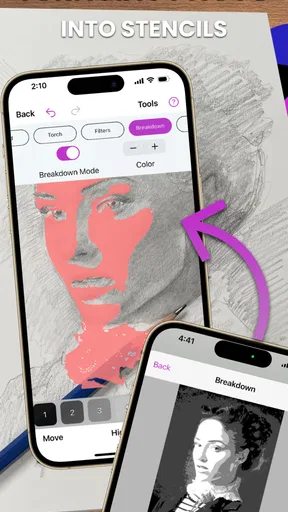
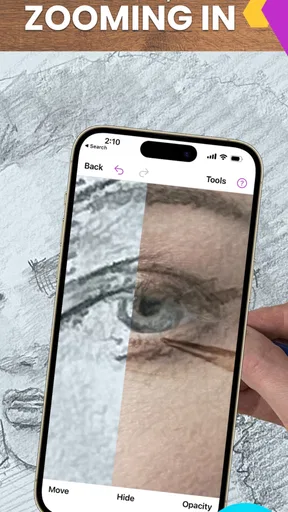
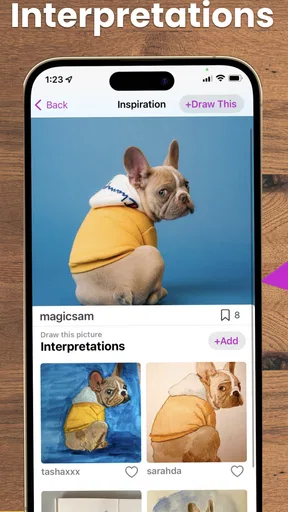
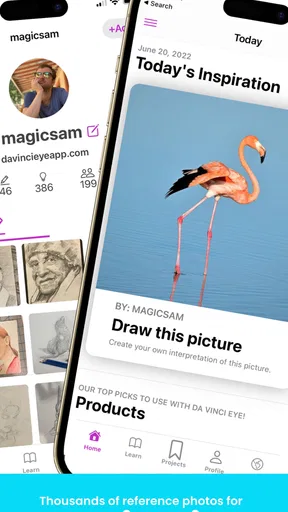
 Analysis by AppCompare
My main takeaway from Da Vinci Eye: AR Art Projector is that it makes a useful bridge between looking at a reference and getting its proportions onto a real surface. It can make a first attempt at drawing feel less intimidating, and it gives experienced artists a practical way to plan a copy or design. I wouldn’t treat it as a replacement for learning to draw, though: it helps with placement and tracing, while the choices that make a picture feel expressive still come from you.
Where the projection helps most
The biggest benefit is having a reference and your drawing surface aligned in the same view. When I’m trying to reproduce a subject, estimating the distance between features by eye can take more effort than the actual shading. An overlay gives me a starting structure, so I can spend more attention on line quality, texture, and the decisions I want to change rather than repeatedly correcting the overall layout.
This is especially handy for a portrait study, a small illustration, or lettering where spacing matters. I’d begin with a simple outline and use the projection to establish the main shapes, then look away from it periodically and draw from observation. That small habit matters: tracing every contour can make the result accurate but stiff, while alternating between the guide and the paper helps me notice what the reference is doing.
The app is an art-and-design tool from Da Vinci Eye LLC, and its central idea is straightforward: use a phone camera view to line up an image with a surface and work from that guide. The app is free to download, with optional in-app purchases ranging from $7.99 to $29.99 per item. I’d try the basic workflow before paying, then decide whether the extra tools fit the way I actually make art rather than assuming I need every upgrade.
A practical workflow, not a magic shortcut
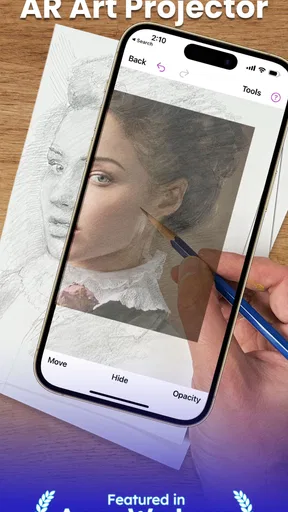
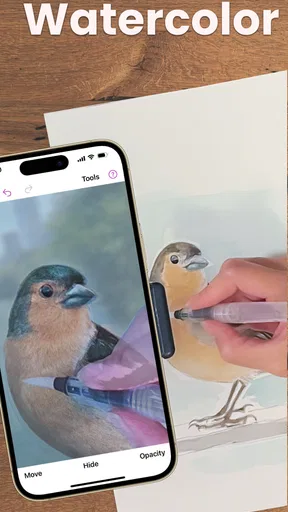
So, let me paint you a picture of what this app is all about. The Da Vinci Eye is an augmented reality app designed to help you draw or paint images with amazing accuracy. Think of it as a modern-day camera obscura but in your smartphone. What does it do? It projects an image onto your canvas, paper, wall, or wherever you fancy, so you can trace it. Imagine being able to reproduce intricate details without sweating over proportions or perspective.
First things first, downloading the app is a breeze. Whether you’re on Android or iOS, it's accessible. Once you have it installed, the setup is straightforward. You just need to choose an image from your gallery or take a new one. The app then projects this image onto your drawing surface through your phone’s camera. You can adjust the size, position, and even the opacity of the projected image to suit your needs.
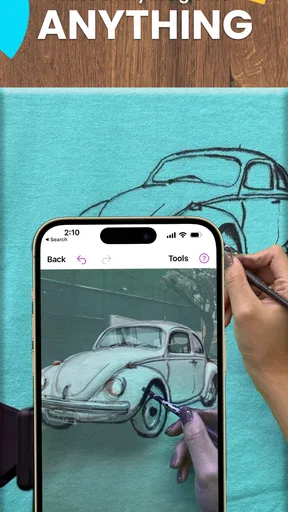
But here’s the kicker – it’s not only for flat surfaces. You can project onto 3D objects too! Ever wanted to paint your guitar with a custom design? Now you can!
Worth Reading Before You Choose

EA SPORTS FC Mobile 26 Is a Bigger Football Game, but It Takes Time

Flipboard Shows What News Apps Must Do Beyond the Feed

Switching to Android Auto Means Rethinking Your Driving Routine

Google Calendar Makes a Crowded Week Easier to Manage

Ludo King Makes the Most of the Minutes Between Plans

Baby Panda World Brings Quick Play to Modern Phones, but Its Game Library Feels Busy
Small adjustments that save frustration
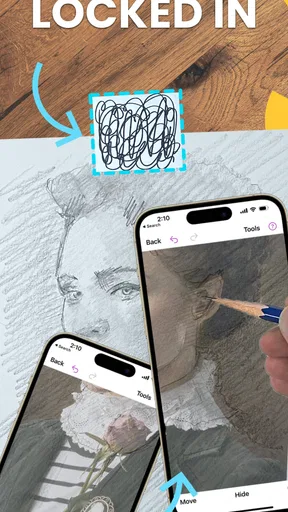
In practice, a stable setup is more important than choosing an elaborate reference. I’d place the paper on a firm surface, secure the phone so it cannot drift, and make a few light marks for the main boundaries before drawing detail. If the camera view shifts mid-session, even a well-aligned image can stop matching the page. A stand or tripod is useful for that reason, particularly when working on a larger sheet or returning to a drawing after a break.
Choose a reference with a clear silhouette for your first attempt. A busy photograph with soft edges, patterned fabric, or overlapping objects can turn the overlay into visual noise. Cropping the image around the subject and reducing its opacity can make the important contours easier to pick out. The Strobe feature offers another way to focus on lines by flashing the image on and off, which can be useful when color is distracting. These adjustments don’t make the drawing automatic; they make the guide easier to interpret.
A realistic use for the app might be a quiet evening project: you find a photo of a houseplant, set a sheet of paper on the table, align the phone, and lightly trace the leaves and pot. Once the basic shapes are in place, you can put the phone aside and add your own shadows or simplify the details. That approach uses the app for the part many beginners find hardest—getting started—without letting the reference dictate every mark.
How it compares with drawing by eye
Compared with a standard drawing app, this is aimed at making marks on a physical surface rather than keeping the whole process on a screen. A digital canvas is usually the more convenient choice if you want layers, easy undo, or a polished illustration that stays editable. A traditional grid method or lightbox may suit someone who wants a fixed reference without keeping a phone camera in position. Da Vinci Eye’s appeal is the direct camera-based overlay: you can work with familiar paper or an object, but you trade some freedom of movement for alignment.
That trade-off also shapes who should skip it. If your main goal is to practise drawing from memory or observational skills without guidance, tracing can become a crutch unless you deliberately use it only for the initial structure. It is also less suited to a quick sketch on the move, since a steady phone and suitable lighting make the workflow more reliable. For an artist who wants to transfer a design onto a surface, however, that setup can be worth the small amount of preparation.
What’s the Buzz About?
What really sets Da Vinci Eye apart is its range of features that cater to both beginners and seasoned artists. There’s a "Strobe" feature that flashes the image on and off, helping you focus on the lines without the distraction of colors. There's also a time-lapse recording option, allowing you to record your art-making process which is super cool for sharing on social media.
Learning and creative confidence
For those who love a bit of guidance, the app includes tutorials and lessons. These are fantastic for picking up new techniques or just getting inspired when you hit a creative block. Plus, the community aspect is a nice touch. You can see what others are creating and share your works too.
I’d use the lessons as support for a specific task rather than as a substitute for a structured course. For instance, a beginner could pick one subject, trace its broad outline, and then practise drawing the same subject again without the overlay. Comparing the two attempts can show which proportions have become easier to judge. The recording feature can serve a different purpose: reviewing a time-lapse may help you spot where you spent too long refining one area or where a rough layout became overworked.
Limits worth knowing before you begin
Okay, so while I’m a fan, it’s not all rainbows and unicorns. The app works best under specific conditions. Good lighting is a must, and sometimes, getting the phone perfectly still can be a bit of a hassle. A tripod might become your best friend here. Also, while the app is free to download, some features are behind a paywall. If you’re serious about using it, the premium version might be worth the investment, but it’s something to consider.
The camera-overlay approach also asks you to work in a particular posture and keep the phone positioned between your eyes and the surface. That can feel awkward for a long session, and a small shift may force you to realign the guide. If you’re working on a large canvas, an uneven surface, or a rounded object, expect to spend more time positioning than you would with a simple flat sketch. I’d test the setup on scrap paper first, especially before committing paint or permanent marks to a finished piece.
It’s also worth separating accuracy from authorship. A precise outline can help you transfer a reference, but it won’t decide which details to leave out, how to handle a difficult edge, or what mood the finished work should have. For custom painting on an object, I’d simplify the design before tracing; tiny photographic details may not translate well to a curved or textured surface. The app is most convincing as a planning aid, not as a promise that every source image will become an effortless finished artwork.
Who I’d recommend it to
I’d recommend this to beginners who want a less frustrating way into sketching, hobby artists transferring a reference, and makers who need to place a design on paper or an object before painting. It may also suit someone preparing a workshop activity or a personal gift, where getting the outline in the right place is more important than drawing it entirely freehand. The Teen content rating is another useful point for families considering it as a creative tool for older children, with the usual guidance around app purchases and shared devices.
On Android, the current version is 4.1.7 and the minimum operating-system requirement is Android 11. It has an average rating of 4.6 from around 1.7 thousand ratings, with over 100 thousand installs. Those figures suggest that it has found an audience, but they don’t tell me whether its camera setup suits a particular room or working style; I’d still test the alignment with a simple image before planning a larger project. It was released on February 7, 2026, so anyone checking compatibility should make sure their device meets the stated system requirement.
If you want an entirely digital illustration workflow, prefer to draw from observation without an overlay, or need to work quickly without setting up a stable phone position, I’d choose another method. For a digital image, a drawing app offers more direct editing; for a physical drawing exercise, a grid or tracing paper may be simpler. Da Vinci Eye occupies a useful middle ground when the goal is to carry a reference onto a real surface.
Final Thoughts
In the end, the Da Vinci Eye: AR Art Projector is a fantastic tool for artists of all levels. It’s user-friendly, innovative, and can seriously up your art game. Whether you’re dabbling in sketching for the first time or you're a seasoned artist looking for a new tool, this app might just be the creative companion you didn’t know you needed.
So why not give it a whirl? You might find yourself creating something you never thought possible, one digital projection at a time. Happy drawing!
My recommendation is to treat it as a focused helper: use the overlay to solve placement, then make deliberate choices of your own. Start with a clear reference, stable phone support, and a small practice surface; you’ll quickly learn whether its hands-on workflow feels natural to you. If that balance of guidance and personal drawing sounds appealing, it’s worth trying. If you want the app to do the artistic thinking, or would rather work without a camera in the way, another approach will suit you better.
Pros
- Enhances drawing skills with AR tracing.
- Wide range of templates for all skill levels.
- User-friendly interface and easy setup.
- Supports custom image uploads for tracing.
- Offers detailed tutorials and tips.
Cons
- Requires a stable surface for best results.
- Limited features in free version.
- Can drain battery quickly during use.
- Best used with a tripod for stability.
- Some features need in-app purchases.
FAQs for Da Vinci Eye: AR Art Projector
What is Da Vinci Eye: AR Art Projector and how does it work?
Da Vinci Eye: AR Art Projector is an innovative app that uses augmented reality technology to help artists of all levels trace and create detailed art pieces. By overlaying your reference image onto a real-world surface using your device’s camera, it allows you to trace and replicate the image with precision, enhancing your drawing skills.
Is Da Vinci Eye suitable for beginners in art?
Yes, Da Vinci Eye is designed for artists of all skill levels, including beginners. The app provides a simple and intuitive interface that makes it easy for new artists to start tracing and creating art. The app also offers tutorials and tips to help users get started and improve their techniques effectively.
What devices are compatible with Da Vinci Eye?
Da Vinci Eye is compatible with most iOS and Android devices that support augmented reality technology. However, older models may not support all features due to hardware limitations. It’s recommended to check the app’s compatibility with your specific device on its respective app store before downloading.
Does Da Vinci Eye require an internet connection to function?
No, Da Vinci Eye does not require an internet connection to function. Once the app is downloaded and installed, you can use its features offline. This makes it convenient for use in various settings where internet access might be limited, such as outdoor locations or studios.
Are there any subscription fees or in-app purchases?
Da Vinci Eye offers both free and premium versions. The free version includes basic features, while the premium version provides additional tools and functionalities, such as advanced tracing options and more detailed tutorials. Optional in-app purchases are available for those looking to enhance their experience with extra content.


